Jetzt inspirieren lassen
Abonnieren Sie unseren Newsletter für kreative Ideen und exklusive Angebote!
Hast du ein Konto? Logge dich ein, damit es beim Checkout schneller geht.


Specification :
Model: Sound Tuya WIFI APP / 44Key NO APP / Music Sync No APP
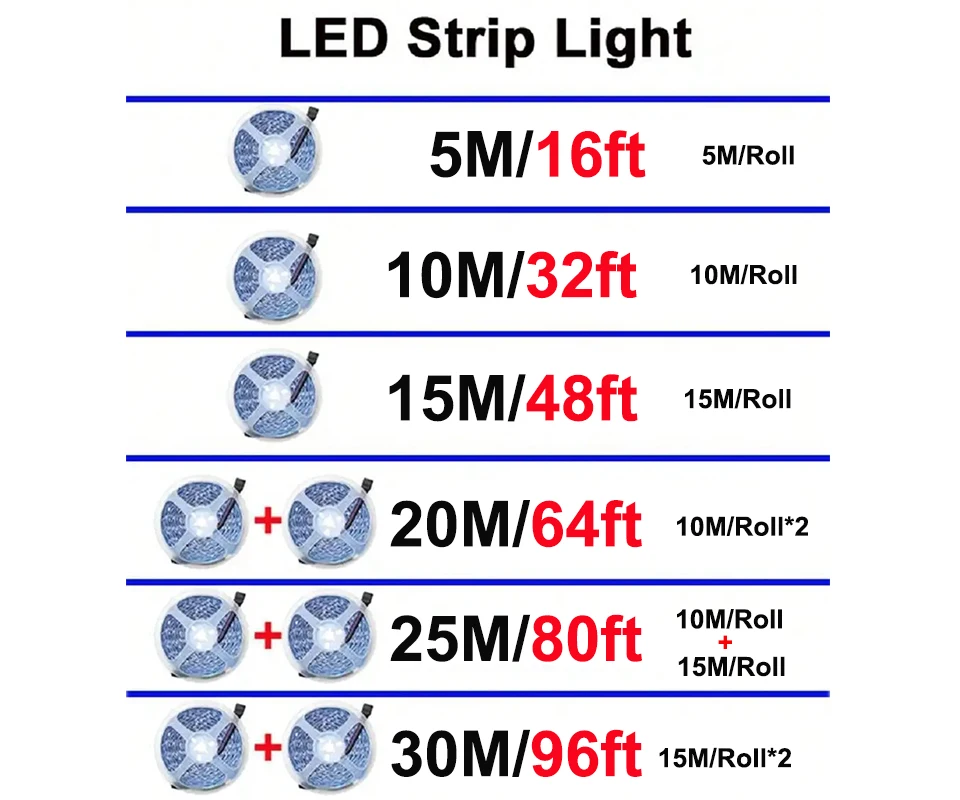
Length: 5M/10M/15M/20M/25M/30M
LED Model: SMD5050
LED QTY: 18 LEDs/M
Input Voltage: AC100-240V
Power: 5M-7.5W/10M-15W/15M-22.5W/20M-30W/25M-37.5W/30M-45W
Waterproof Rating: IP20 Non Waterproof
Certifications: CE. ROHS
The product link includes 3 LED strip options:
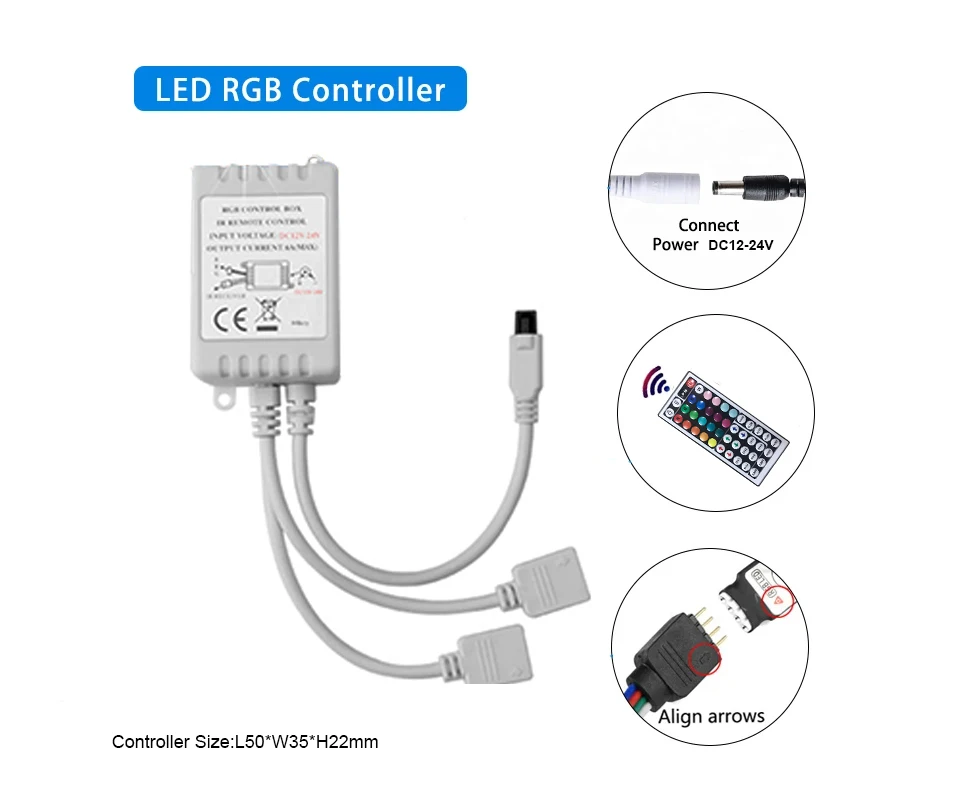
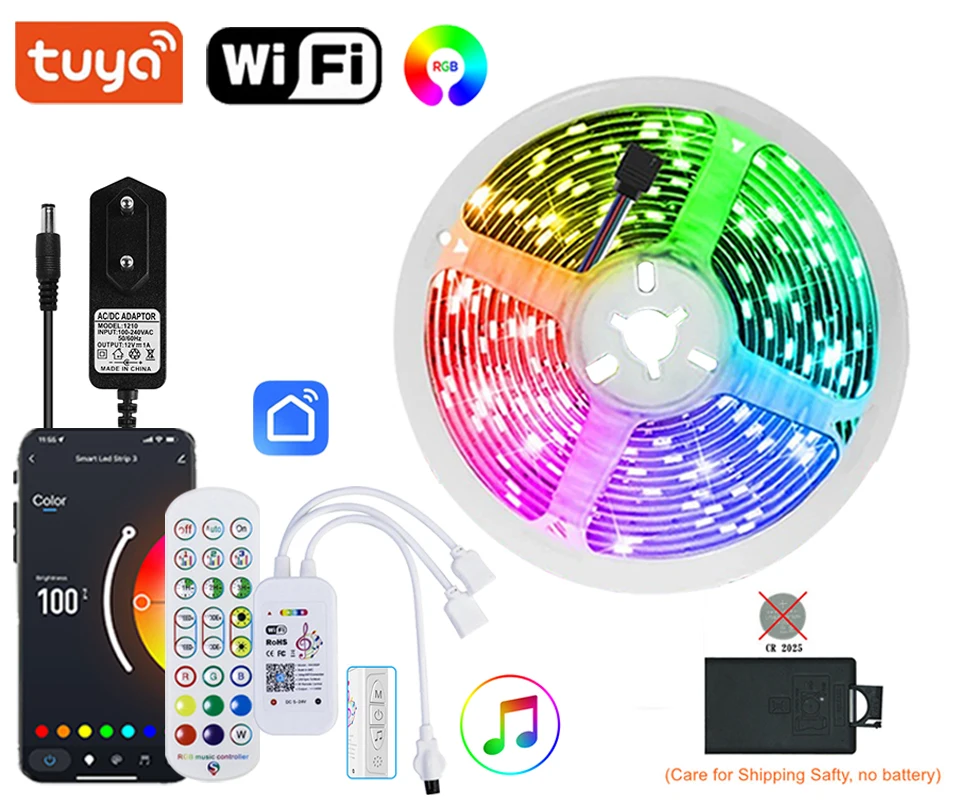
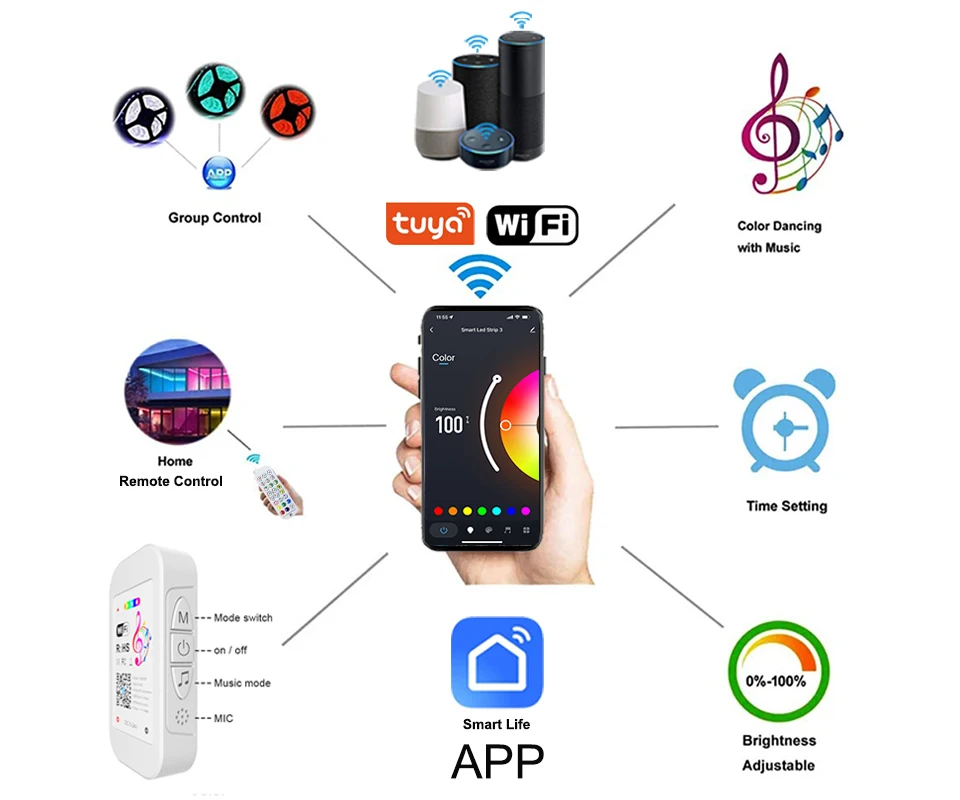
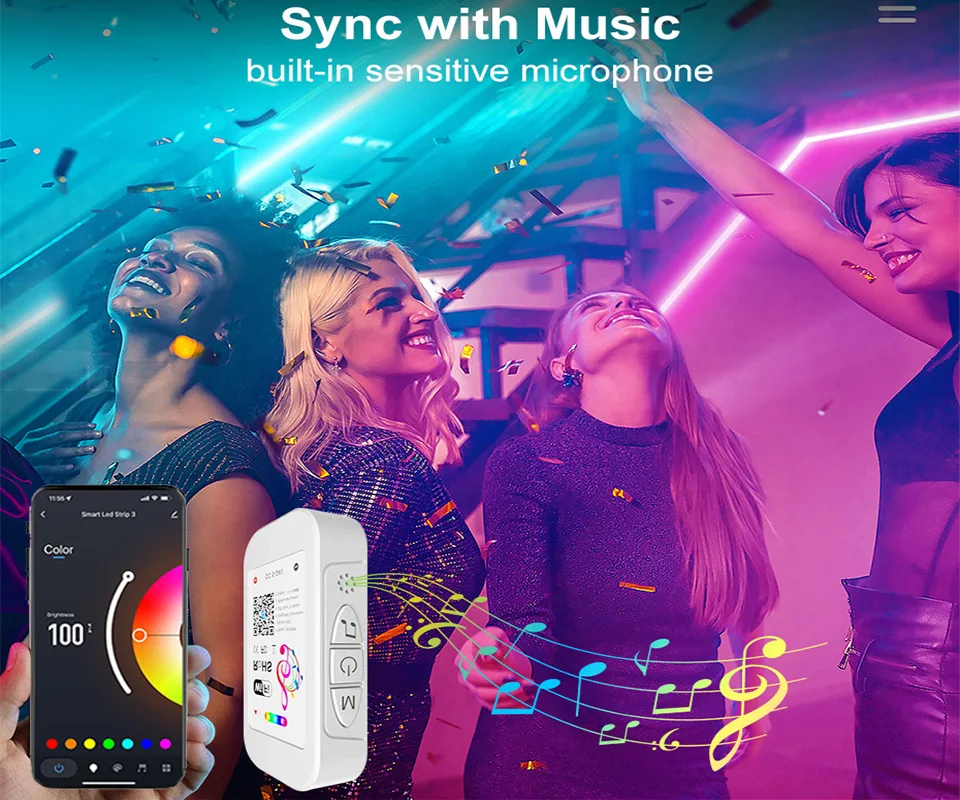
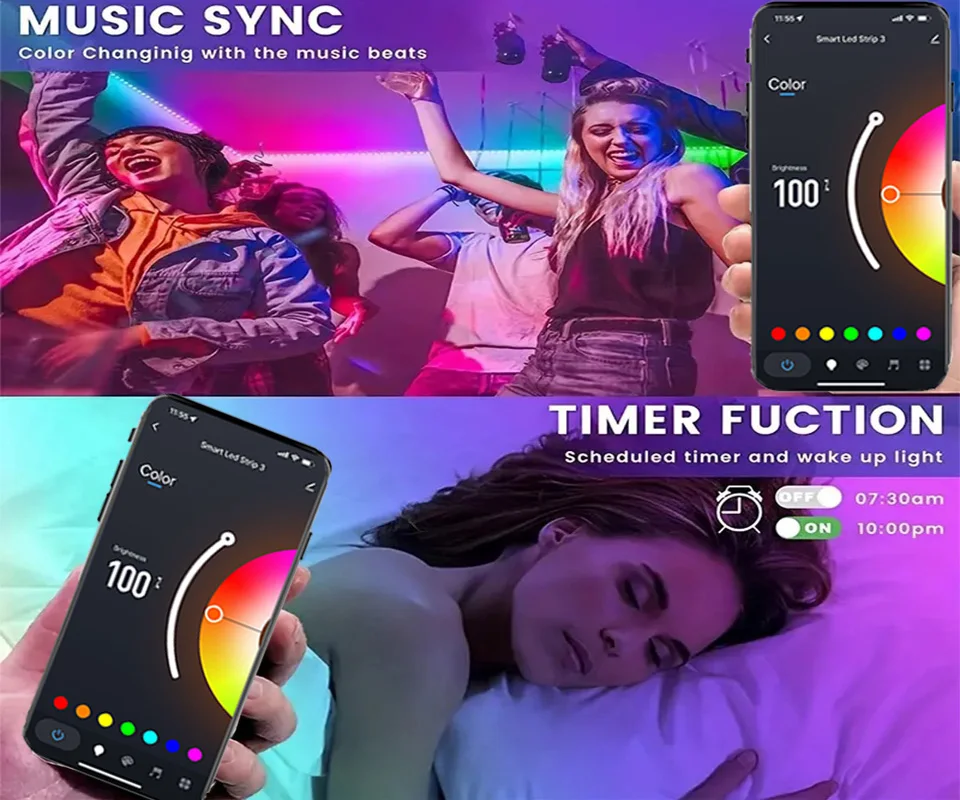
Sound Tuya WIFI: Led Strip + Sound Tuya WIFI controller + 24Key Infrared Remote controller.( Can Use The Mobile App To Control The Light Strip).
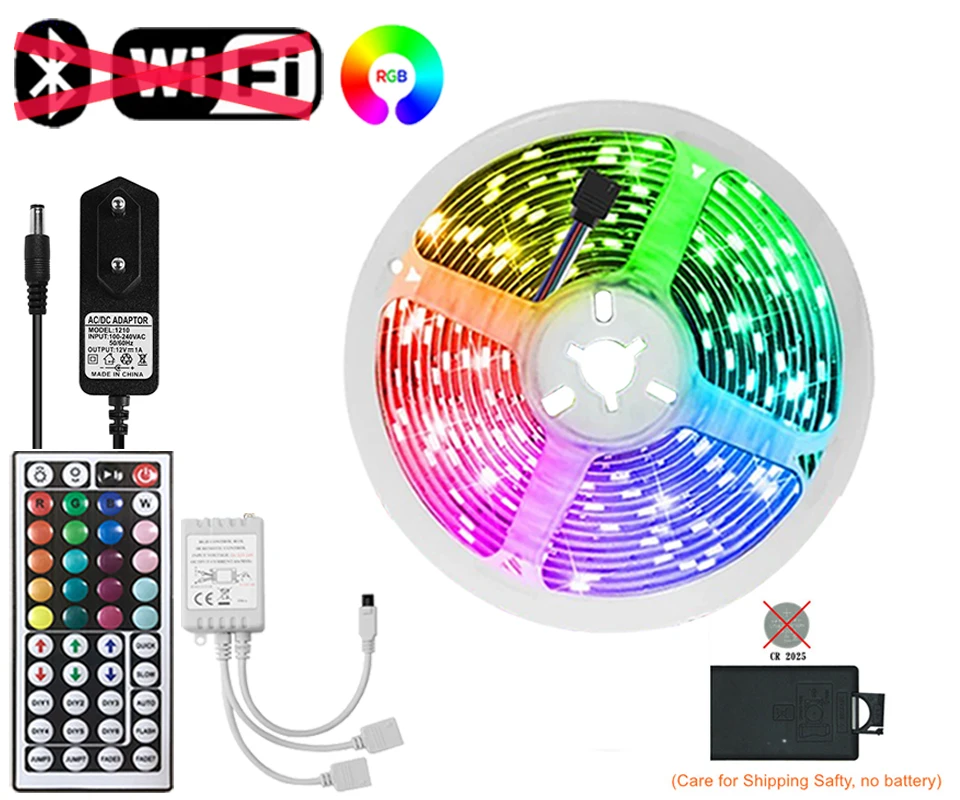
44Key controller: Led Strip + Box controller+ 44 Key Infrared Remote controller. ( NO APP).
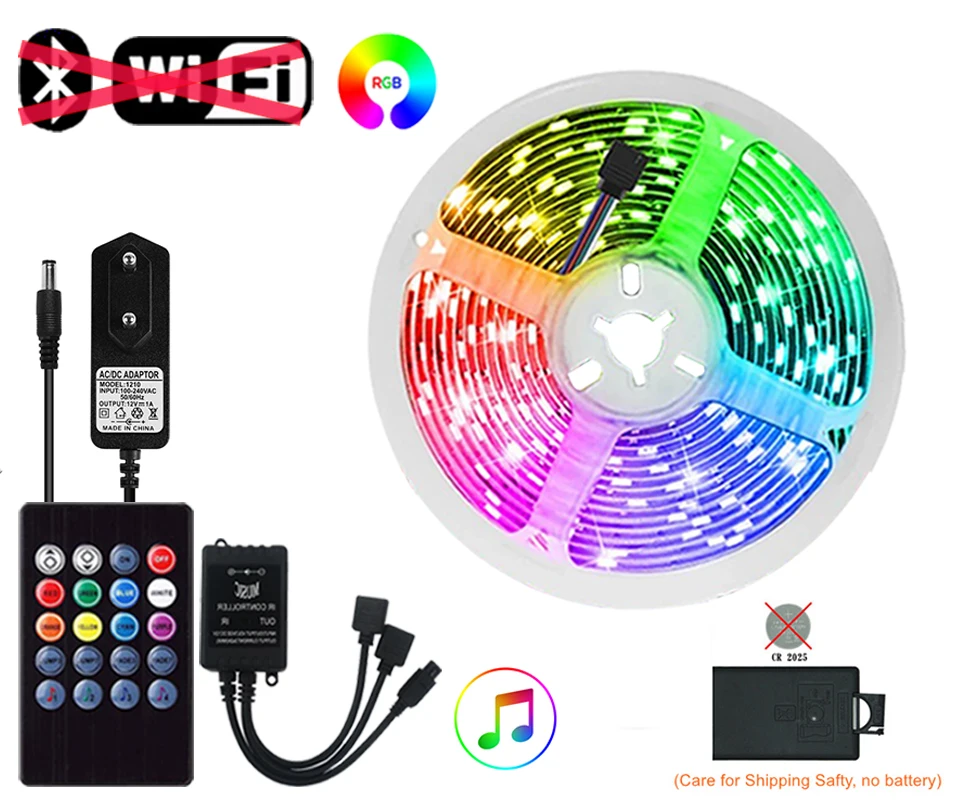
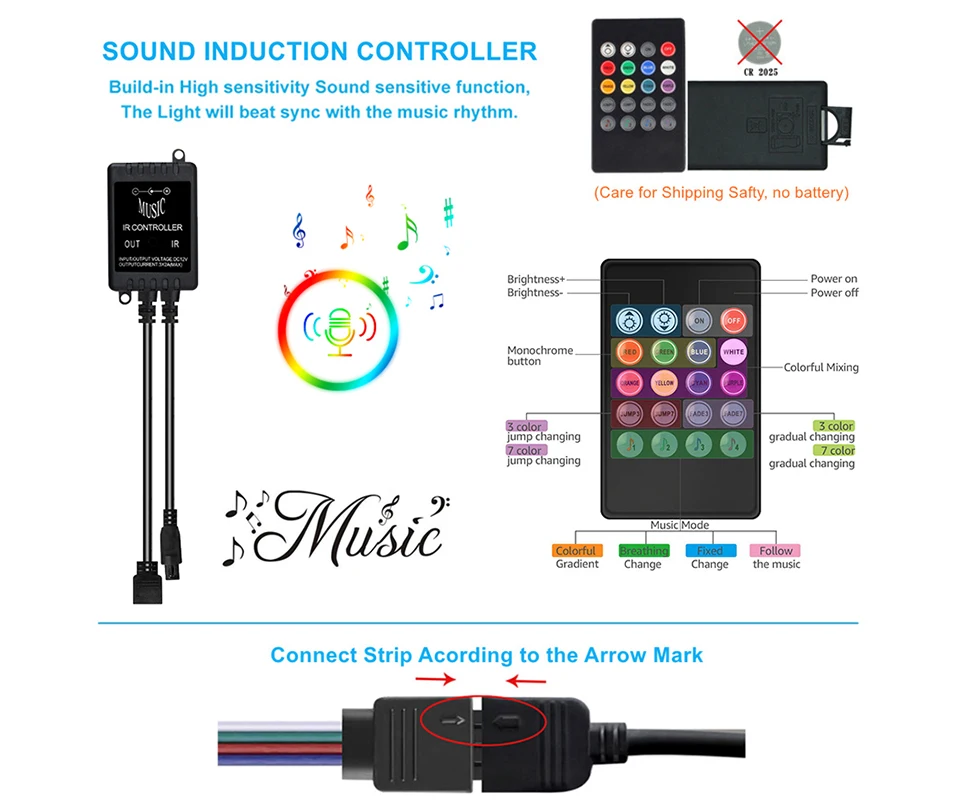
20Key Music Sync controller: Led Strip + Music Sync Box controller+ 20 Key Infrared Remote controller. ( NO APP).
Package List:
5M=5M/Roll
10M=10M/Roll
15M=15M/Roll
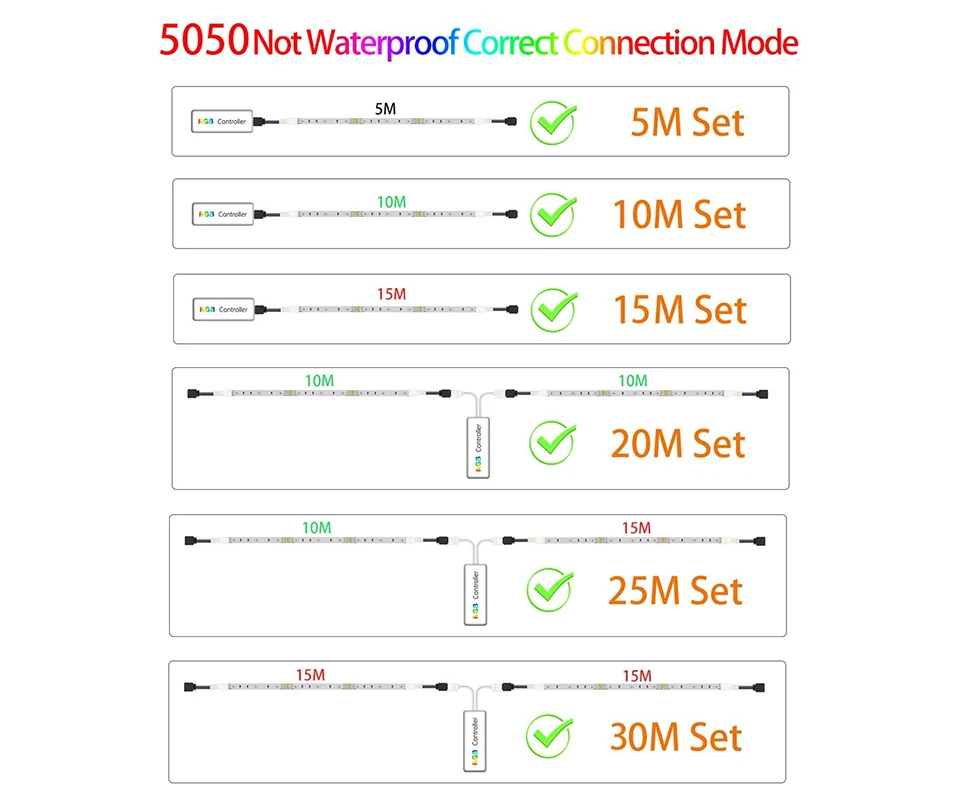
20M=2*10M/Roll
25M=10M/Roll+15M/Roll
30M=2*15M/Roll
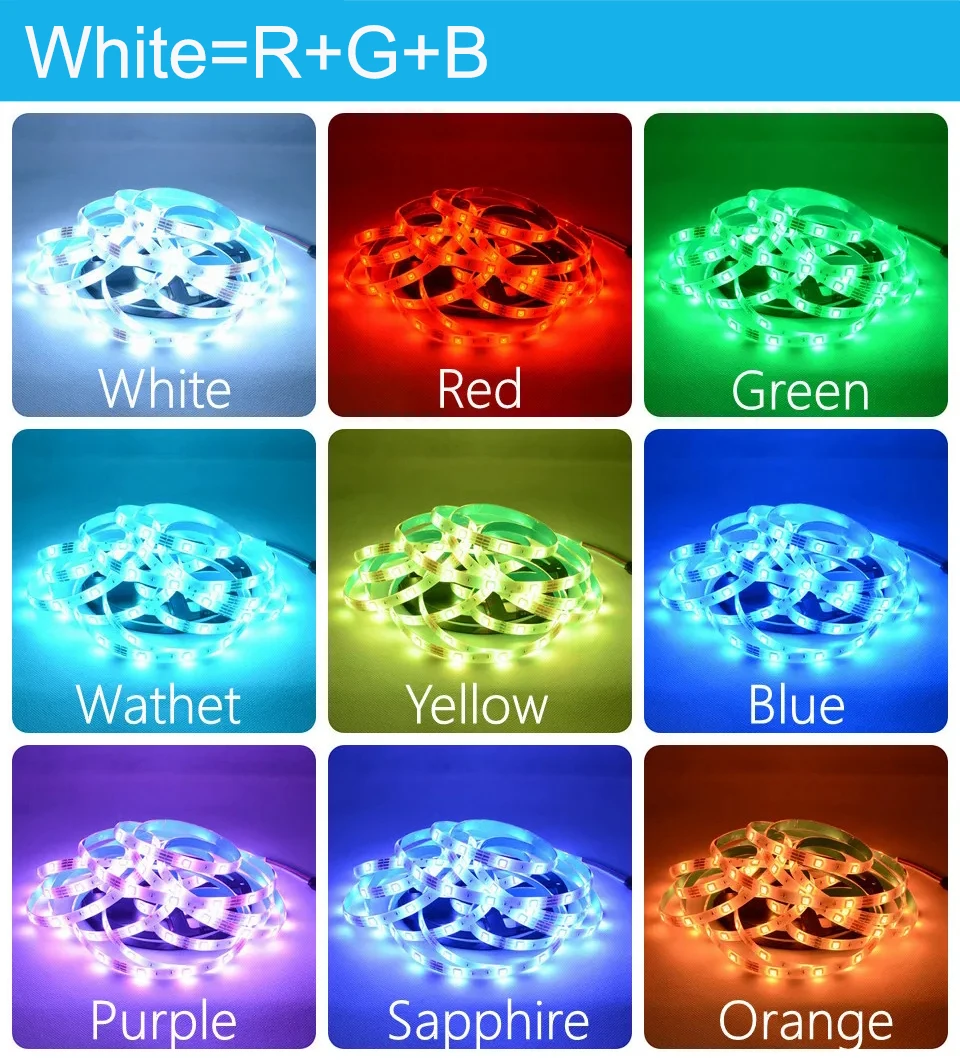
Note: The white light of RGB light strips is composed of three colors: red, green, and blue, which differ from pure white light.The picture and Video shows the 30-meter set.





Tuya / Smart Life Tips--Network
Be sure that you are using 2.4GHz WiFi when connecting with the smart led strip. And WiFi must be detectable status. Many routers have 5 GHz and 2.4 GHz network and your phone will always automatically connect to the 5 GHz network. So, you have to completely turn off your 5 GHz network by going to your router settings (enter the router IP address into your internet browser, usually something like 192.168.1.1), forcing your phone to connect to the 2.4 GHz network. In addition, the router encryption mode must be WPA2-PSK type and the authentication type must be AES.
If your router supports both the 2.4 GHz and 5 GHz bands, but only one Wi-Fi name is displayed on the Wi-Fi search page of your mobile phone, perform these steps:
1. Go to the Wireless page of the router. (The entry address is usually provided on the label attached to the back of the router).
2. Go to the 2.4 GHz setting page, and set the Wi-Fi name (SSID) to XXX-2.4G, where xxx indicates the Wi-Fi name. Save setting.
3. Go to the 5 GHz setting page, and set the Wi-Fi name (SSID) to XXX-5G, where xxx indicates the Wi-Fi name. Save setting.
If the "DHCP" function of the router is not turned on, with multiple smart devices in the home, which will affect the normal use of connected devices, please refer to the following steps:
1. Enter the LAN Settings (LAN) page of the router.
2. Find the DHCP " setting option
3. Open the DHCP setting option
4. Save the Settings and then
How to connect Tuya / Smart Life APP
Step 1: Search "Tuya" or "Smart Life "on Phone to download it.
Step 2: Connect led strip to your local 2.4G WIFI with your phone connecting to it.
Step 3: Set up your Tuya account. Add Device>Lighting devices and confirm the device in the App.
Step 4: Easy Mode or APP Mode(Press on/off button of the device 5 times)